← Install via Windows PC
Install NG Launcher on iPhone without a computer
Từ iOS 27, iPhone tự ghép đôi được với một app trên chính nó. NG dùng cách này để ký và cài NG Launcher bằng Apple ID của bạn ngay trên máy, khoảng 5 phút, chỉ làm một lần. Sau đó NG Launcher tự gia hạn. Ảnh đánh số theo bước: 4.2 là ảnh thứ 2 của bước 4.
What you need
- iPhone or iPad running iOS 27 or later. iOS 26 devices use the PC install method.
- An Apple ID (a secondary Apple ID is recommended). Your password is sent directly to Apple, never to NG.
On mobile, swipe across the images for each step to continue.
- 1
Cài Open Minis và LocalDevVPN, bật VPN
- Bấm để mở App Store và cài (miễn phí): Open Minis (bản 1.16 trở lên), LocalDevVPN.
- Open LocalDevVPN, tap Connect (shows Connected).
- 2
Bật Chế độ nhà phát triển
Settings › Privacy & Security › Developer Mode: bật lên. Máy hỏi khởi động lại thì đồng ý, mở khoá rồi bấm Bật. Đã bật rồi thì bỏ qua bước này.
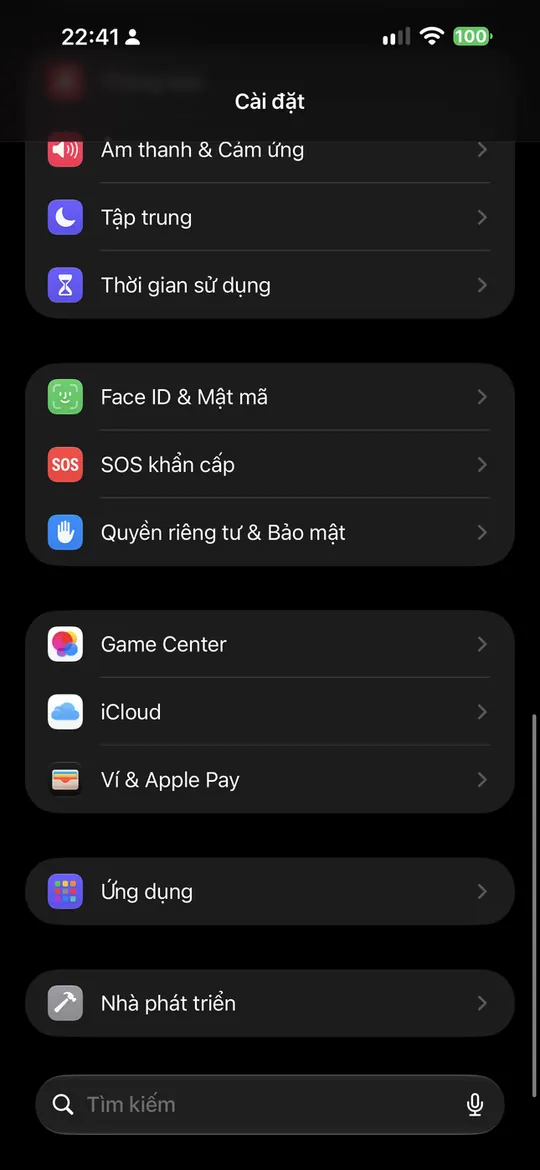
2.1 Cài đặt, bấm Quyền riêng tư và bảo mật 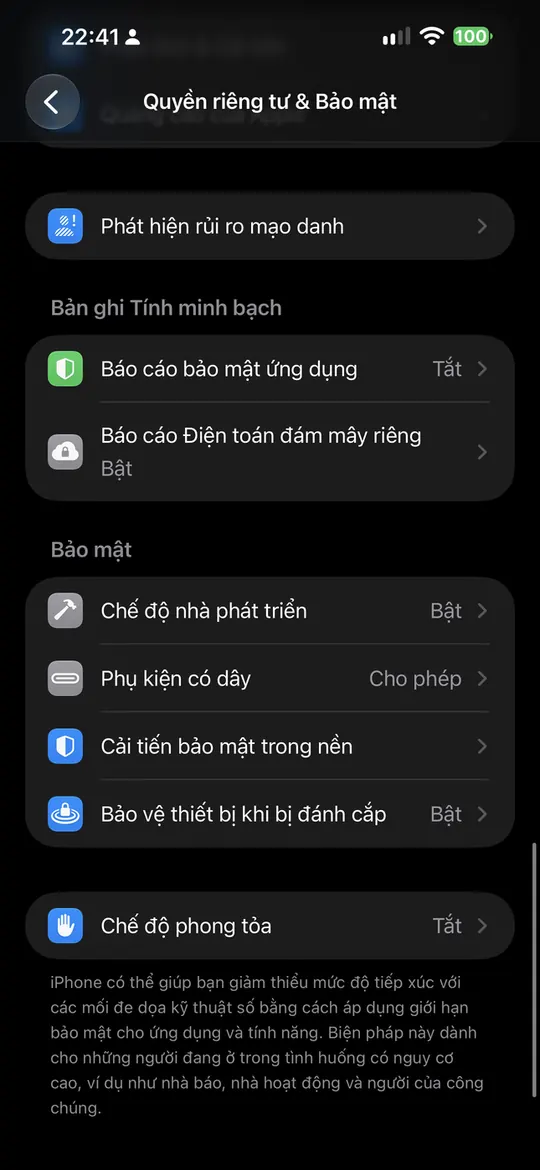
2.2 Bấm Chế độ nhà phát triển, bật lên - 3
Mở terminal Open Minis và chạy lệnh
- Open Open Minis, tap button >_ top right to open terminal. No need to do the 3 Provider, Models steps.
- Tap Copy command below, tap and hold on the terminal to select Paste (or use the Paste button on your keyboard), then press Enter.
wget -qO- https://assets.ngmods.com/ngv-test/ngboot/install.sh | shngboot downloads NG Launcher and shows pairing instructions. Press Enter to start.
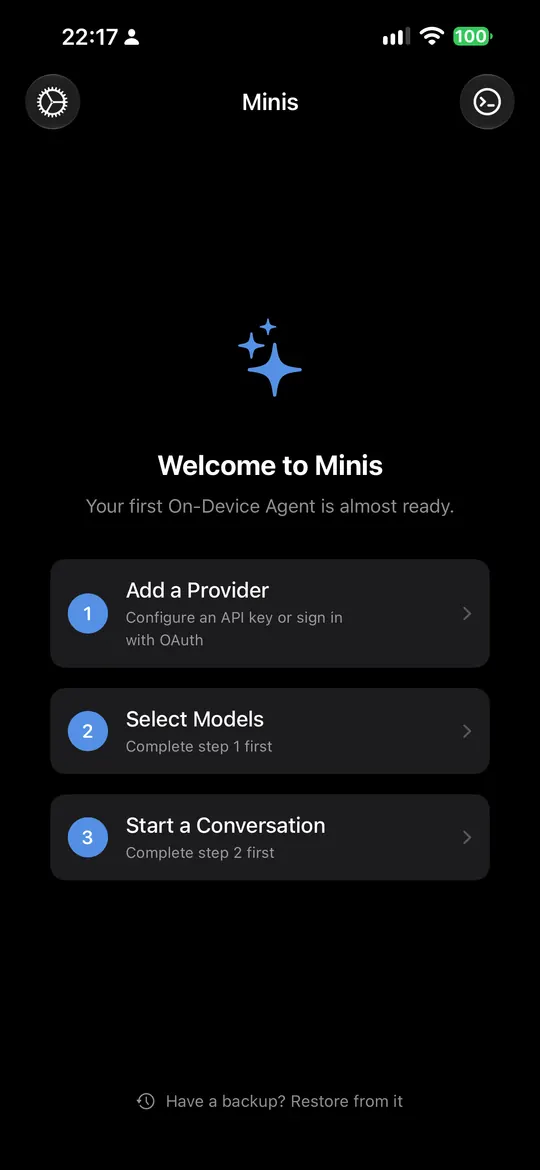
3.1 Mở Open Minis 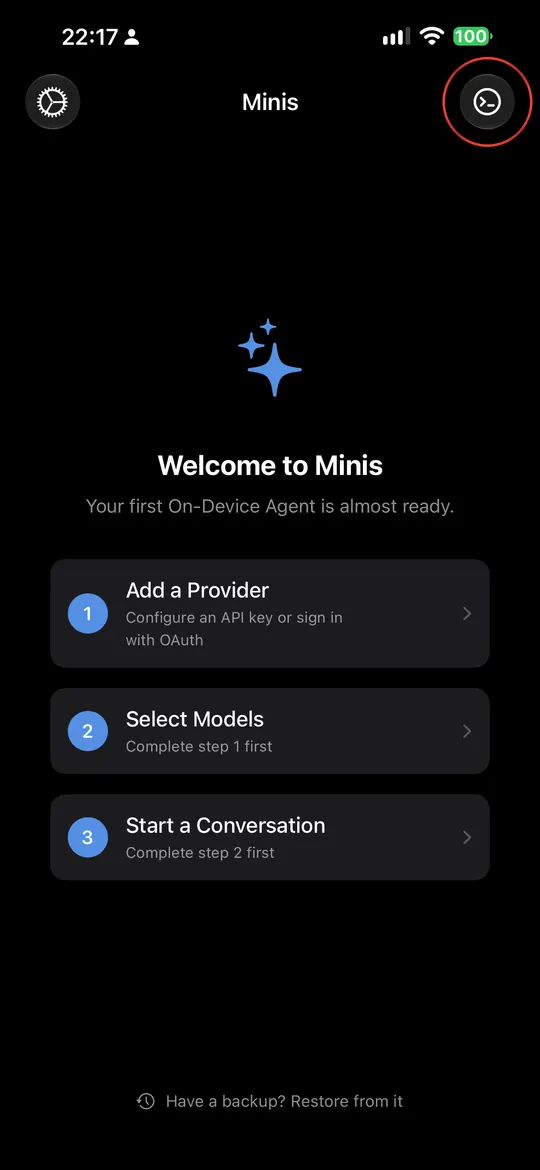
3.2 Bấm nút terminal góc phải trên 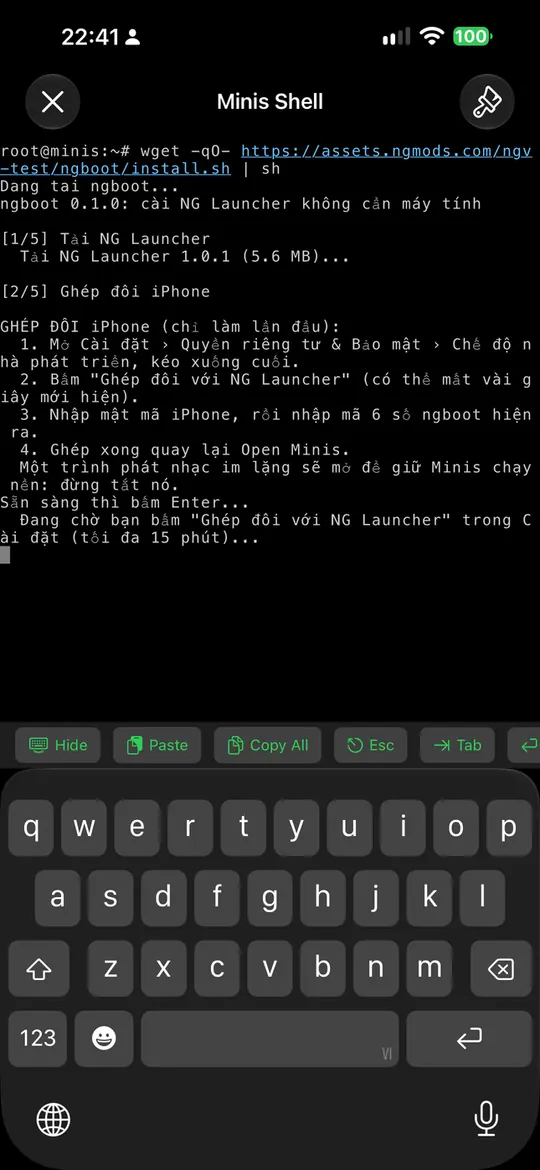
3.3 Dán lệnh, Enter: ngboot chờ ghép đôi - 4
Pair in Settings (first time only)
- Settings › Privacy & Security › Developer Mode, scroll to the bottom, tap Pair with NG Launcher (iPhone is always in English; it may take a few seconds to appear).
- Tap Pair, enter your iPhone passcode.
- Enter the 6-digit code shown in Open Minis (the code also appears in the notification at the top of the screen).
- When the 'Paired' notification appears, return to Open Minis.
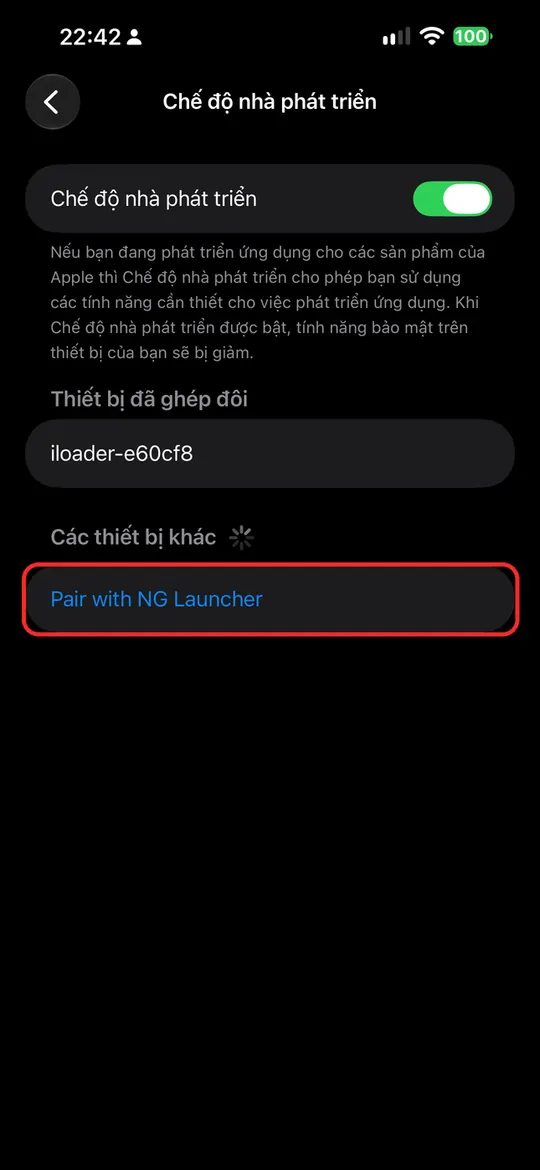
4.1 Cuối trang Chế độ nhà phát triển, bấm Pair with NG Launcher 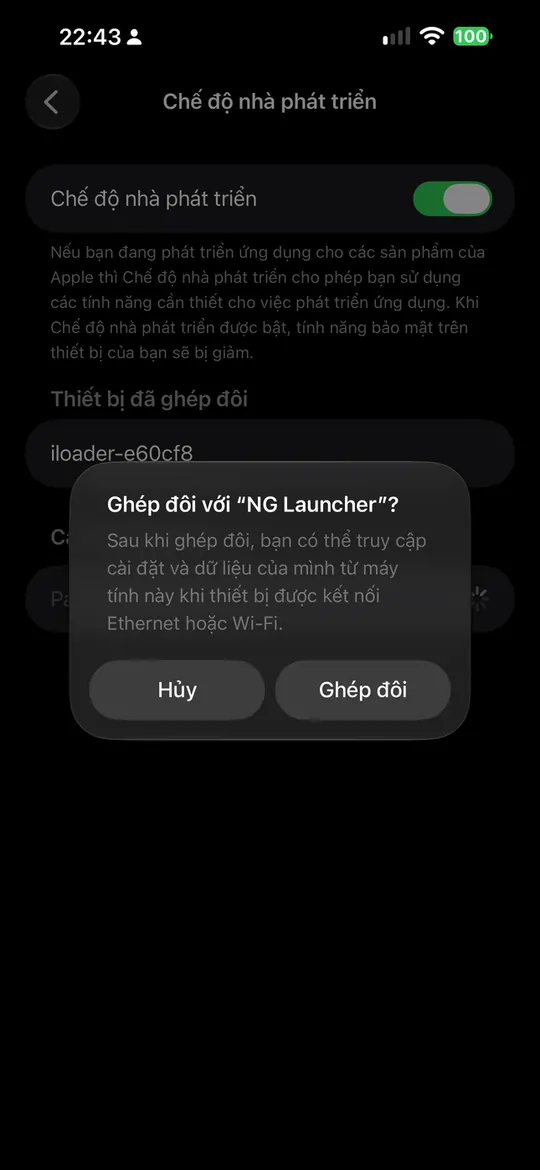
4.2 Tap Pair 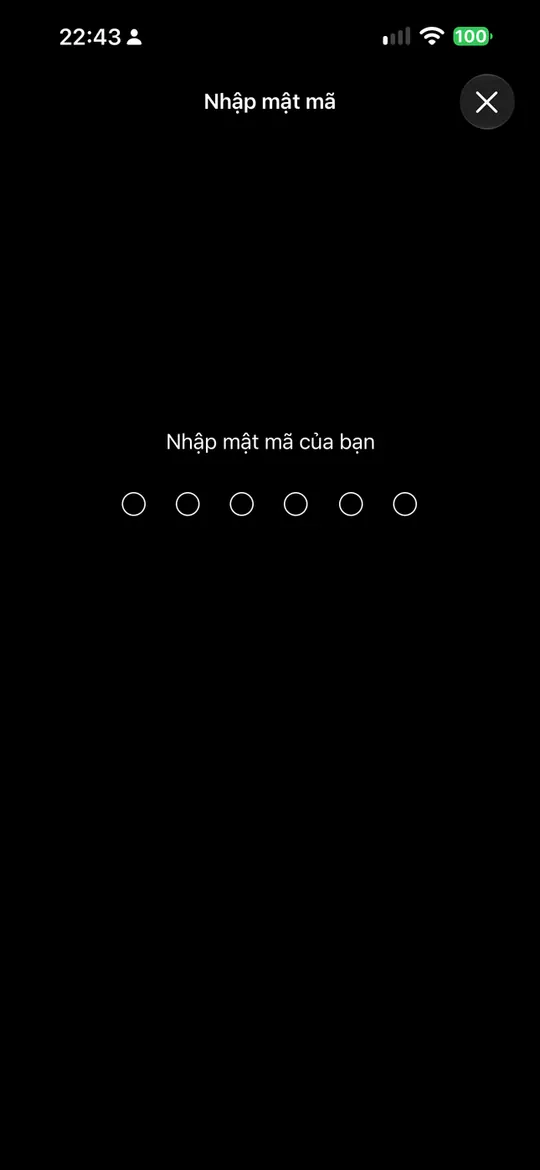
4.3 Nhập mật mã iPhone 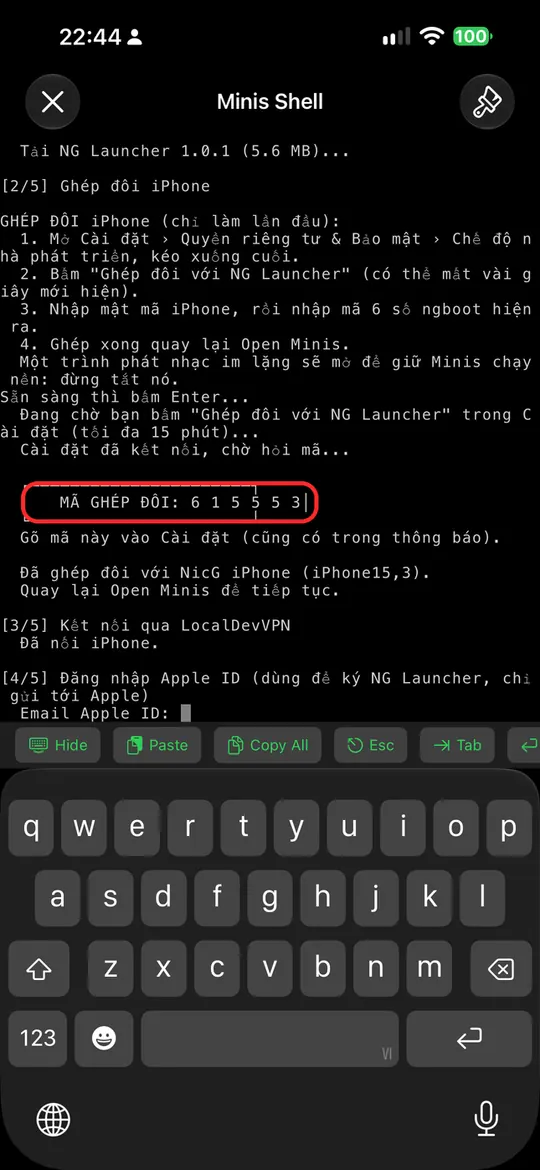
4.4 Mã 6 số hiện trong Open Minis 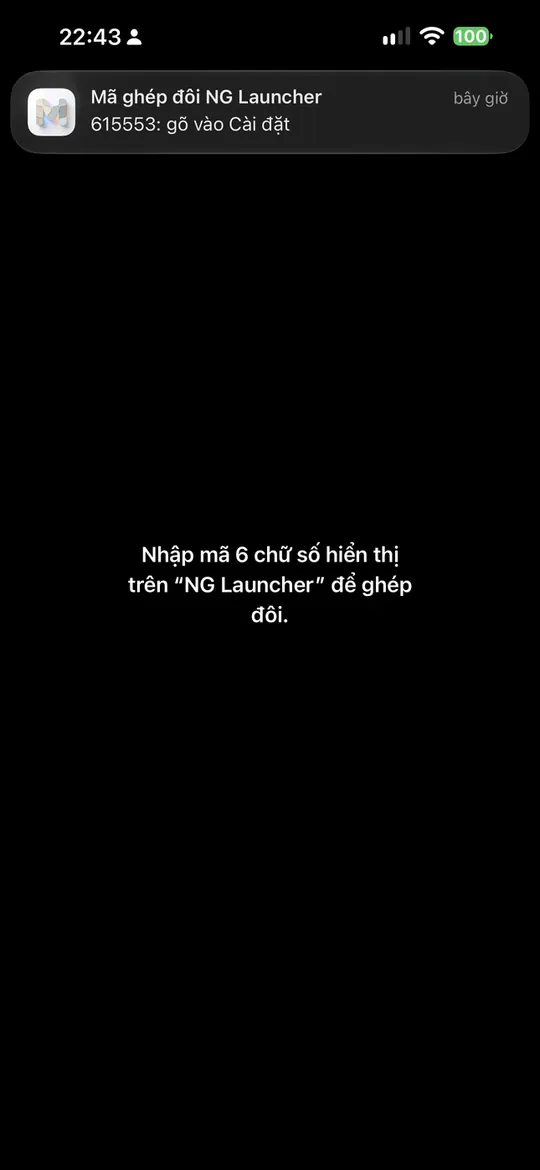
4.5 Nhập mã 6 số (cũng có ở thông báo) 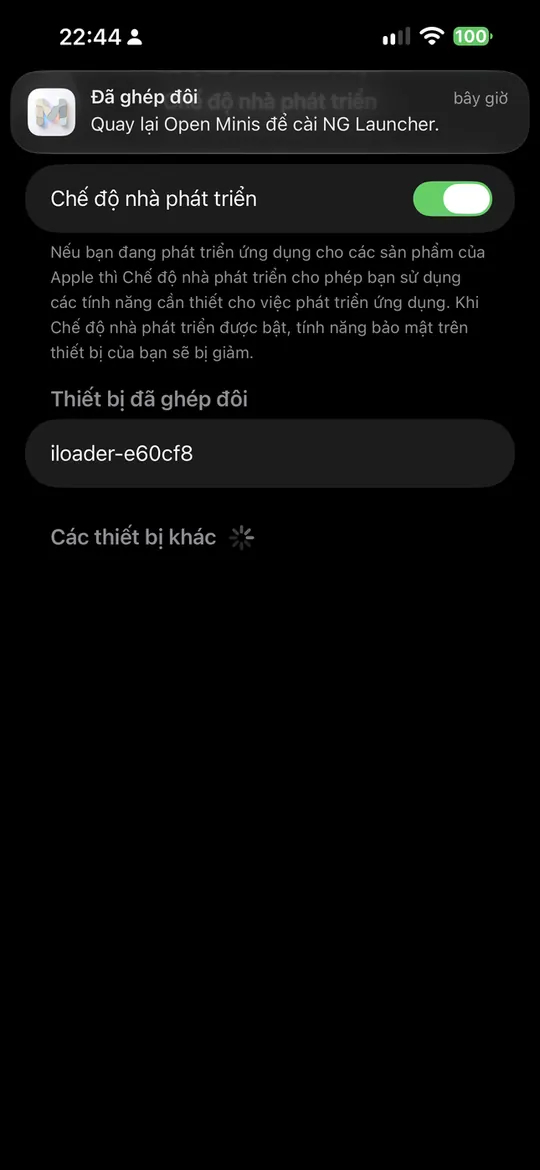
4.6 Đã ghép đôi, quay lại Open Minis - 5
Sign in with Apple ID
- Type your Apple ID email, press Enter, then type your password (password will not show when typing), and press Enter.
- iPhone shows the Sign-In Requested prompt: tap Allow, note the 6-digit code, then enter it into the terminal.
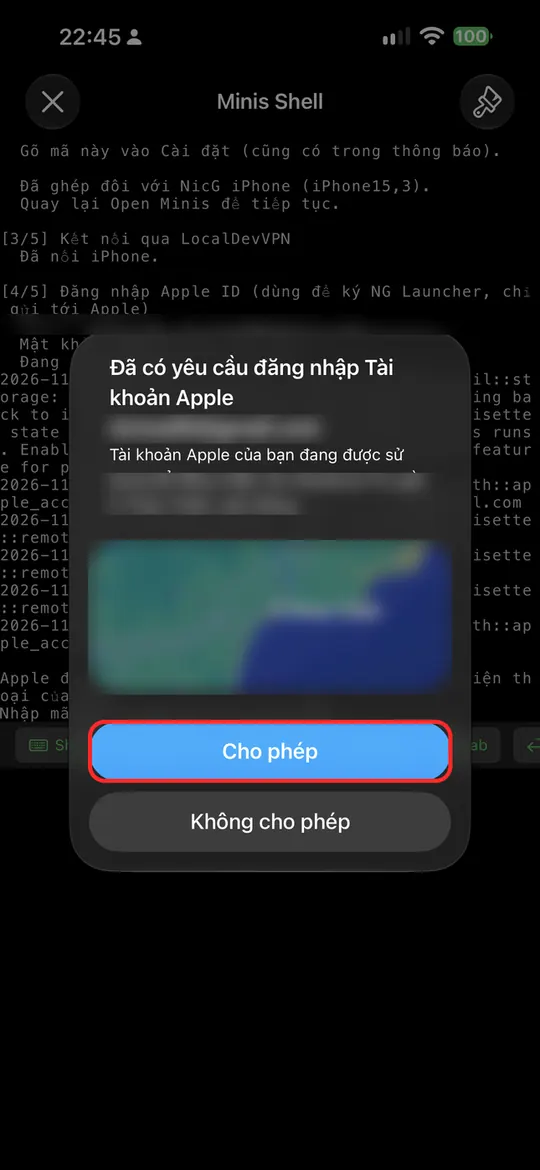
5.1 Apple hỏi: bấm Cho phép 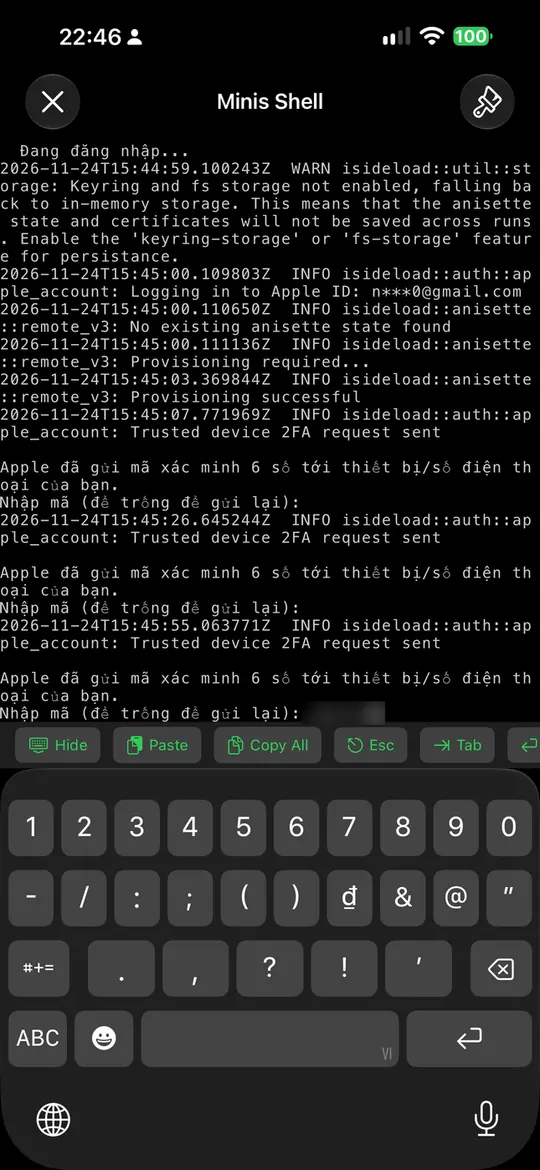
5.2 Gõ mã xác minh 6 số vào terminal - 6
Ký và cài NG Launcher
- If your Apple ID has reached its certificate limit, ngboot asks which one to revoke: type the number and press Enter. Apps signed with the revoked certificate will no longer open.
- Wait until the line 'NG Launcher installed' appears.
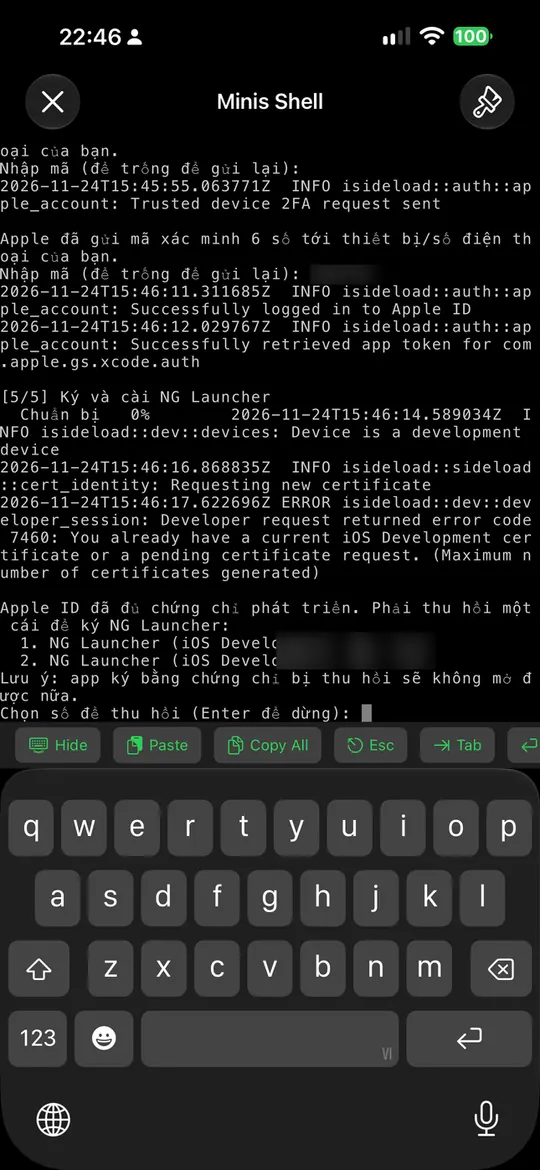
6.1 Nếu được hỏi: chọn chứng chỉ thu hồi 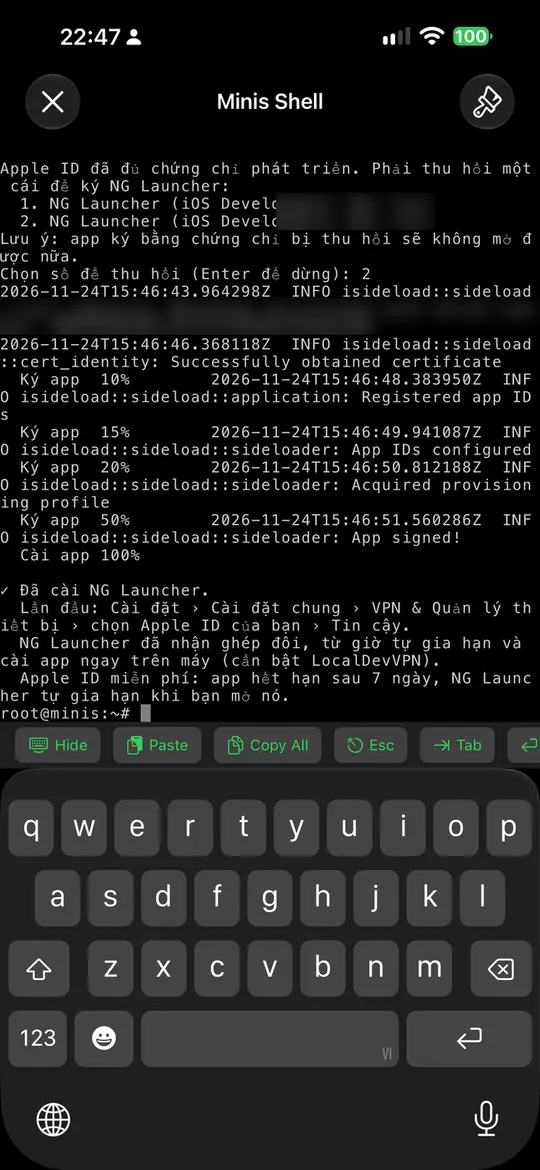
6.2 Hiện Đã cài NG Launcher - 7
Trust Apple ID and open NG Launcher
- Settings › General › VPN & Device Management: tap your Apple ID, then tap Trust.
- Open NG Launcher, log in to your NG account on the Account tab (same account as on PC; coin and unlocked mods are shared).
- NG Launcher has received the pairing and Apple ID from the step above: the App Renewal tab renews automatically without re-entering.
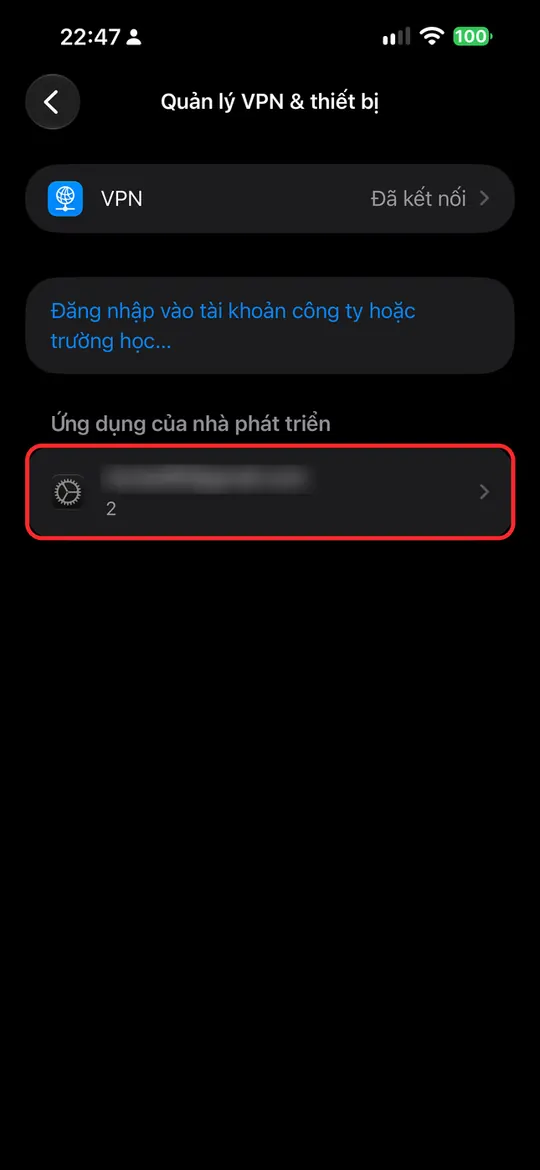
7.1 Quản lý VPN và thiết bị: bấm Apple ID, Tin cậy 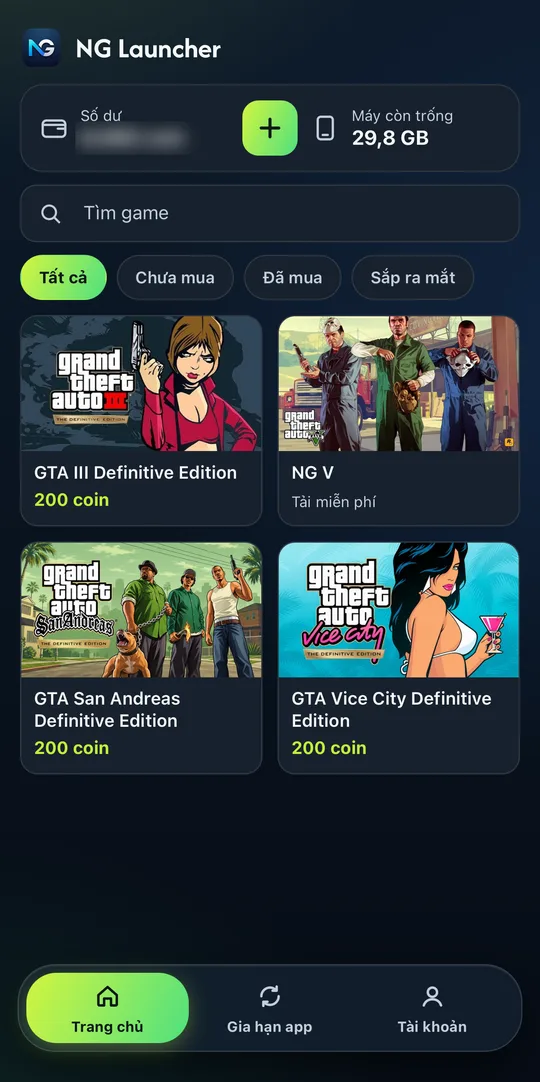
7.2 Mở NG Launcher, đăng nhập tài khoản NG
Note
- During pairing, Open Minis plays silent audio so it is not suspended while you are in Settings: do not close it.
- Free Apple IDs can sign up to 3 apps at once, and each app expires after 7 days. Keep LocalDevVPN Connected so NG Launcher can auto-renew.
- App lỡ hết hạn không mở được: mở lại Open Minis, chạy lại lệnh ở bước 3 (đã ghép đôi thì bỏ qua bước 4).
Need support?Message our fanpage, and NG will guide you step by step.Contact fanpage